Reconcile your QuickBooks accounts in minutes, not hours
Connect your bank via Plaid or upload CSV statements, automatically match transactions against QuickBooks Online, and review exceptions in a side-by-side view.

Direct QuickBooks Online integration
Connect your QuickBooks Online account and pull transactions directly. Select any General Ledger account and reconcile against your bank data seamlessly.
Plaid bank account linking
Link your bank accounts securely via Plaid to automatically import transactions. No manual data entry required—just select your account and date range.
CSV bank statement upload
Prefer to upload statements manually? Upload CSV files from any bank and the system will parse and filter transactions by your selected date range.
Intelligent transaction matching
Automatically match transactions using configurable date range tolerance, amount matching, and reference matching. Adjust the day range slider to control matching flexibility.
How It Works
Streamline your QuickBooks reconciliation in four simple steps
Connect QuickBooks Online
Link your QuickBooks account and select the General Ledger account to reconcile
Set Reconciliation Parameters
Enter date range, beginning/ending balances, and matching tolerance
Import Bank Data
Link via Plaid or upload CSV bank statements as your source data
Review Matched Results
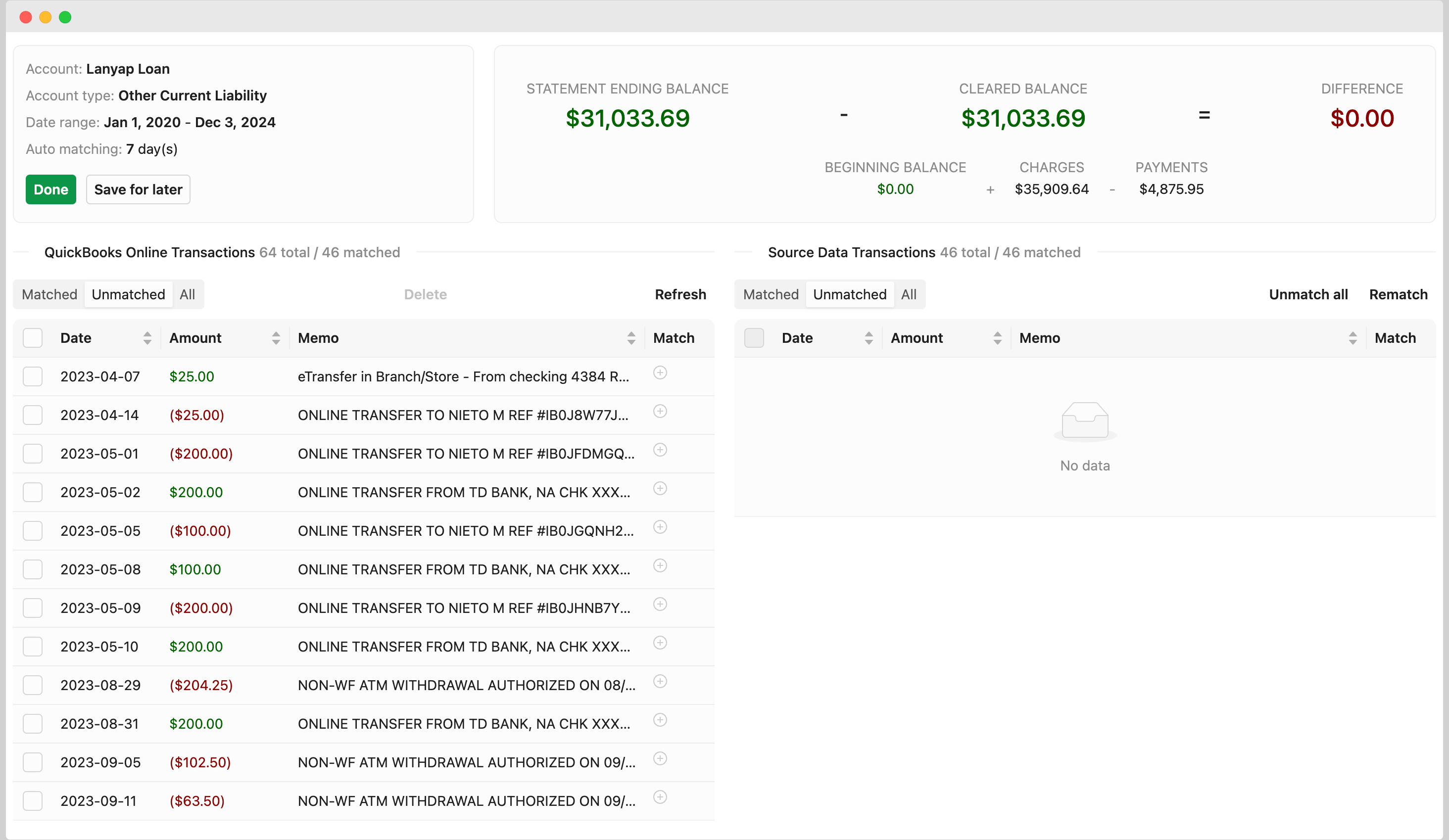
View side-by-side comparison of QuickBooks vs bank transactions
Connect QuickBooks Online
Link your QuickBooks account and select the General Ledger account to reconcile
Set Reconciliation Parameters
Enter date range, beginning/ending balances, and matching tolerance
Import Bank Data
Link via Plaid or upload CSV bank statements as your source data
Review Matched Results
View side-by-side comparison of QuickBooks vs bank transactions
See the transformation in action
Watch how chaos becomes clarity in seconds
The Manual Nightmare
Hours cross-referencing bank statements with QuickBooks, hunting for discrepancies, and manually matching transactions one by one.
Intelligent Auto-Matching
Transactions are automatically paired using configurable date tolerance, exact amount matching, and reference number detection.
Review & Approve
View QuickBooks and bank transactions side-by-side. Focus only on exceptions and unmatched items.

"Tired of month-end scrambles, switching between QuickBooks and bank portals, and reconciliation that takes days instead of hours?"
Key benefits of our reconciliation software
Streamline your QuickBooks reconciliation workflow with these powerful features:
Request a demo- Direct QuickBooks Online integration—no manual data export required
- Automatic transaction matching by date, amount, and reference number
- Configurable date range tolerance (±1 to ±10 days) for flexible matching
- Import bank data via Plaid or CSV upload from any financial institution
- Balance validation ensures your bank statement totals match before reconciling
- Side-by-side view of QuickBooks vs bank transactions for easy comparison
- View reconciliation history and access past reconciliation results anytime
- Role-based access controls for team collaboration
- Real-time updates via WebSocket for collaborative workflows
Reconciliation, automated
of lines auto-matched
faster bank reconciliation
saved every close
banks & ledgers supported

Equility’s bank reconciliation wizard turned a messy, hour-long process of reconciling my business accounts into an automated, 5-minute solution.
Jeff Chadwick
Chadwick Creative
Where has this been all my life!
Lisa Culverwell
Miss Elsie’s BookkeepingIntegrates seamlessly with the tools you already rely on.
Integration with


FAQ
Does this work with QuickBooks Online?
Yes, our reconciliation software integrates directly with QuickBooks Online. Connect your QuickBooks account, select any General Ledger account, and reconcile against your bank transactions. The system pulls transactions directly from QuickBooks—no manual export needed.
How do I import bank transactions?
You have two options: Link your bank account via Plaid for automatic transaction import, or upload a CSV bank statement. Plaid supports over 12,000 financial institutions, and our CSV parser works with statements from virtually any bank.
What does the 'Matching Date Range' setting do?
The matching date range slider (±1 to ±10 days) controls how flexible the system is when matching transactions by date. If bank and QuickBooks transactions are recorded on slightly different dates, increasing this range helps find matches. Set to 0 to disable date-based matching.
What happens if my balances don't match?
Before running a reconciliation, the system validates that your bank transactions total matches the difference between your beginning and ending balances. If they don't match, you'll receive a warning to verify your balances or check your uploaded transactions.
What happens to transactions that can't be auto-matched?
Unmatched transactions appear in the results view where you can review them side-by-side with available matches. You can manually pair transactions or investigate why they weren't matched.
Can I view past reconciliations?
Yes! The History tab shows all your past reconciliations with the account, date range, and creation date. Click on any past reconciliation to view the detailed results and matched transactions.
Your Next Close Is Already Counting Down
Every hour your team spends on manual reconciliations is an hour they're not doing higher-value work. Equility handles the matching, the checks, and the errors — so your close takes hours, not days.